Getting Started
NAV connection
NAV connection
The Kontozz system allows you to connect your company to the NAV Online Invoice system, so that data reporting can take place automatically after invoices are issued.
This step is mandatory for all businesses that are required to provide online billing information.
Achieving NAV connectivity
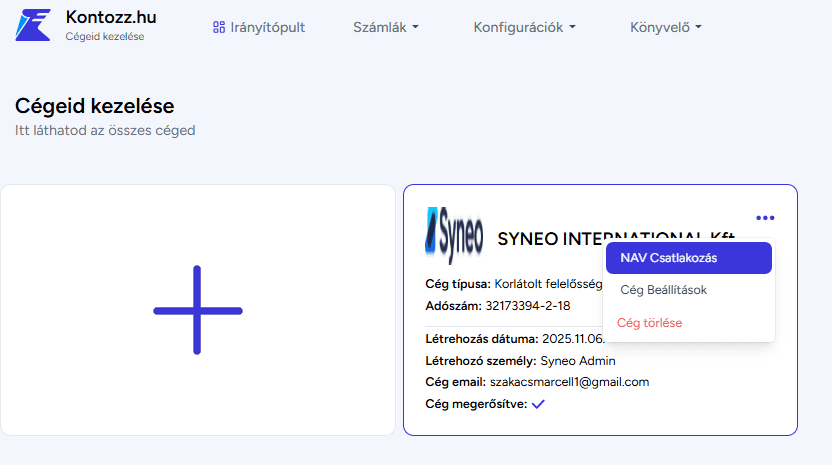
After confirming your company, each business will appear on a separate card on the Manage Your Companies page.
To start the connection process, follow these steps:
In the upper right corner of the desired business card, click on the three dots (⋯).
From the menu that appears, select the "NAV Connection" option.
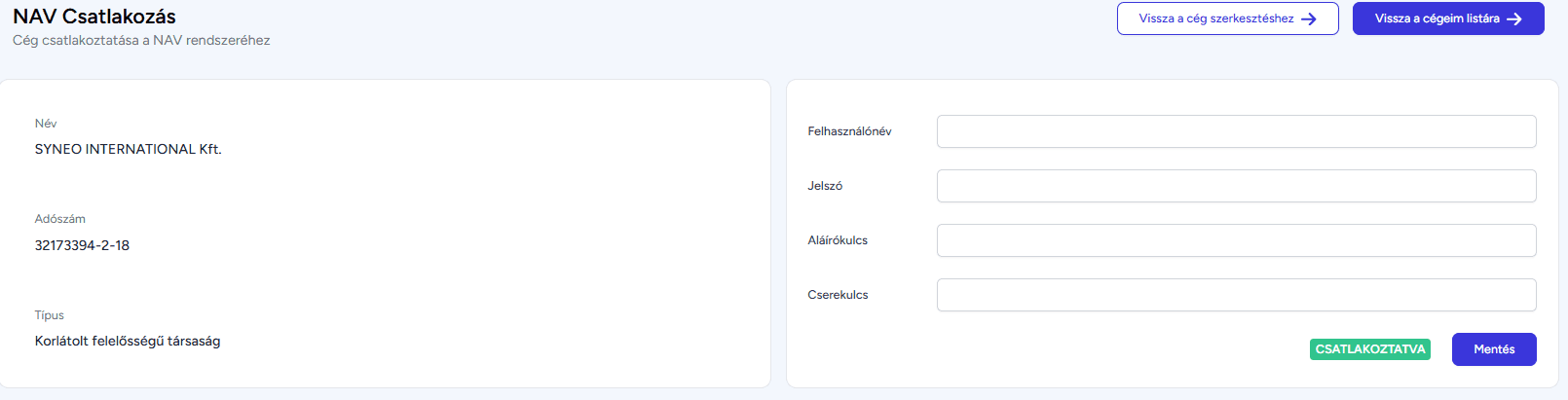
The system will then open the NAV Connection interface, where you can enter the required data at
.Entering NAV data
On the page that opens, the system automatically fills in the company's identification data (name,
tax number, type).
In the fields on the right, enter the technical
user data created in the NAV Online Invoice system:Username – the name of the technical user created in the NAV system
Password – the corresponding unique password
Signature key – signature key generated by the NAV system
Exchange key – exchange key generated by the NAV system
After filling in all the fields, you can choose between two options:
"Connected" – if the system has successfully connected the company to the
NAV, the field will show a green status;"Save" – click here if you are now saving or updating the connection.
Check and status
After successful connection, the NAV integration status will be updated on the company card, and the
system will be able to automatically transfer invoice data to NAV.
If the connection fails, the system will display an error message. In this case, check
to ensure that the technical user's details have been entered correctly in the NAV
system.
Any other questions? Get in touch